| Object | Description |
|---|---|

Expand-Collapse Control
|
Click to expand or collapse Entity Navigation Control |
|
Entity Navigation Control |
Access to different Data Insight entity
Dashboard Management – It used to create dashboard, dashboard template and manage media file on Data Insight Module. Report Management – It used to upload RDLC format report template, scheduling time for report generation and view report. Activity Log – Activity Log entity allow user to view and monitor the audit trial of DI. Notification – It used to view the latest application notification, click “View All Notification” will be divert to Activity Log entity Help – This link to AHI Online User Manual page. Setting – Configure setting of Data Insight Theme(Black/White) and display language. |
|
Dashboard Control Button
|
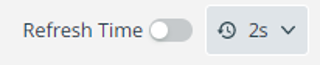
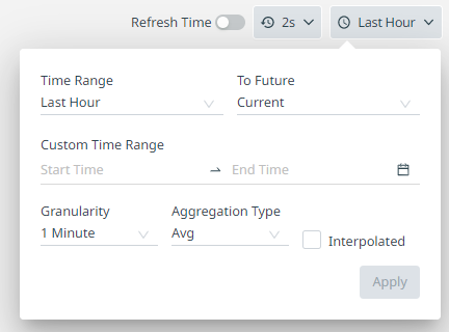

|

Table List Control Button |
Control button of table list:
Add Widget – Add new dashboard widget into selected dashboard Save – Save the state of configured dashboard New – Create new object (e.g. dashboard template, report template, etc.) on specific entity list view Delete – Delete object from list view Export – Export selected list view object Download – Download selected media file/report from asset media/report list view Upload – Upload media file to asset media list view, only available for asset media list view. Filter – Filter list view to show object which meet the filter criteria, details please refer to Table List Filter Refresh – Refresh list view to show latest available object |
Search Control |
Search for the object of table list view across all the table column |
|
Table List Sorting Control |
It supports various mode of object sorting, below icon represent the mode of sorting: 
Neutral – No sorting rule apply to object 
Sort Ascending – Object are arranged from lowest to highest value 
Sort Descending – Object are arranged from highest to lowest value 
Sort Order – Data Insight table list view can sort multiple table column at same time, number beside sorting icon represent the sorting order privilege, number with 1 have the highest privilege, list view will sort for the object under this column first. |

Table List Page Control |
It works with record per page Control, if the maximum object reached the setting of record per page control, it would display on next page of table list, user can navigate the page by using this control. |
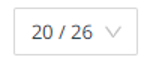
Record Per Page Control |
This control limits the maximum object to be display inside a page of table list, it supports 20,40,80 and 160 objects per page. Example the control shows below number: 20/187 It represents: Max object per page>/Total object available inside list view> |
|
User Profile Control |
It displayed the logged in user account id and username. It will popup below function dialog box when user click on it.
App Portal – Go back to AHI Application selection screen Switch Project – Go back to Data Insight Project selection screen Profile – Display logged in account details information; for details, please refer to User Profile Set As Default Page – Set current page as default login page Logout – Log out current user from AHI |
Sitemap |
This control button link to AHI Sitemap page
|
Term & Conditions |
This control button link to AHI Term & Condition agreement page
|